One Stream.Every Platform.One Overlay.
Build your overlay in an editor as simple as Canva, then paste one URL into OBS or TikTok LIVE Studio — it drops straight onto the setup you already run. Or let StreamingIn broadcast for you, to every platform at once, as powerful as OBS.
Overlay & Broadcast
Overlay Only
Windows x64 · .zip · How to install
Live from your phone
Android 8+ · .apk · How to install the USB version
One broadcast out to every platform
Every live event back into one overlay

Live output preview
Instagram takes the broadcast, but Meta does not open Instagram Live comments to apps — so that wire runs one way only.
Main Features
One App for Every Live Need
From intense gaming and podcasts to live selling, StreamingIn covers the whole run: design the overlay, broadcast it everywhere, and read every room from one dock.
Multistream to Multi Platforms + Your Own RTMP
One broadcast reaching YouTube, TikTok, Twitch, Facebook, Instagram, Kick and your own RTMP ingest at the same time — with two encode arms, so one platform’s codec limit never downgrades the rest.
Overlay Studio Editor
Canva-like editor with a clean & simple new layout. Change colors, text, and multi-widget positions in real-time in 1 output URL.
Interactive Live Widgets
Make viewers part of the stream with interactive widgets for Chat, Gift, and more directly integrated with TikTok & YouTube.
Go Live Without OBS
Broadcast straight from the app: Virtual Camera for use in other apps, RTMP broadcasting, and YouTube connection via OAuth just like OBS — plus output recording, no extra software.
Scene Transitions & Effects
Switch scenes with smooth transitions including Morph Transition, plus effects and animations on shapes for a lively, cinematic look.
Per-Element Overlay
Output a single selected widget or element as its own overlay URL — place a specific widget anywhere in OBS or TikTok Live Studio.
Safe & Private
No sensitive data is sent to the cloud. All your stream configurations remain yours locally.
Light & Fast Performance
Full HTML CSS JS rendering with minimal resources. Designed to run smoothly on low-end machines without sacrificing visual quality and fast interaction.
Multistream
One canvas. Every platform at once.
Composite your scene once and StreamingIn pushes it to YouTube, TikTok, Twitch, Facebook, Instagram, Kick and any RTMP ingest you own — in the same run, off the same GPU.
How one live reaches all of them
Your scene
1080p60
One GPU composite
Built once, on the GPU
Arm 1
H.2654500 kbps
Arm 2
H.2647500 kbps
Every destination gets the full encode
1–2encodes, whatever you add
Codec is the platform’s requirement, not your choice. One codec across your list is one encode; a second appears only when the list spans both. Extra destinations on a codec you already run are free.
What each ingest accepts
- H.265
- H.265
- H.264
- H.264
- H.264
- H.264
Upload is the real budget
YouTube + TikTok + Twitch
4500 × 2 + 7500 × 1
16.5 Mbpsupload needed
Every destination carries its arm’s full bitrate, so it adds up. StreamingIn sums it and checks it against your measured uplink — before you go live, not mid-broadcast.
One encode carries one ratio — a 9:16 run serves TikTok and Instagram, a 16:9 run serves YouTube, Twitch, Facebook and Kick
And every event comes back
The platforms you broadcast to are the ones the app listens to. Chat, gifts, follows and likes land in one dock and drive the same overlay widgets — one leaderboard counting more than one audience.
| Platform | Chat | Gift | Follow | Like | Share | Join | Viewers |
|---|---|---|---|---|---|---|---|
| TikTok | Chat: available | Gift: available | Follow: available | Like: available | Share: available | Join: available | Viewers: available |
| YouTube | Chat: available | Gift: not available | Follow: available | Like: not available | Share: not available | Join: not available | Viewers: available |
| Twitch | Chat: available | Gift: available | Follow: available | Like: not available | Share: not available | Join: not available | Viewers: available |
| Chat: available | Gift: not available | Follow: not available | Like: available | Share: not available | Join: not available | Viewers: available | |
| Kick | Chat: available | Gift: available | Follow: available | Like: not available | Share: not available | Join: not available | Viewers: not available |
| Broadcast only — no live events | |||||||
- Saweria
- Sociabuzz
- Trakteer
- Tako
- BagiBagi
- Sibagi
- TipTap
 Saweria
 Sociabuzz
 Trakteer
 Tako
Tako BagiBagi
 Sibagi
 TipTap
A donation arrives on the same event bus as a chat message, so it drives the same widgets — alerts, counters, leaderboards — with no separate setup.
Measured, not claimed
It already scores like OBS.
Identical frames were fed to every encoder at a fixed 5000 kbps and the results scored with VMAF. This is where StreamingIn landed against the tools it is asking you to replace.
| Configuration | VMAF score | |
|---|---|---|
| StreamingInH.265 · Performance / Quality | 87.06 | |
| OBS / StreamlabsQuickSync HEVC | 86.77 | |
| TikTok LIVE Studio1080×1920 @ 5400 kbps · separate run | 83.00 | |
| OBS = StreamingInQSV H.264 — byte-identical output | 82.96 |
VMAF — higher is better
VMAF is the entire gap between us and the best OBS or Streamlabs can do here. That is a tie — and a tie is the point: you give up no picture by switching.
On H.264 our output file is the same bytes OBS produces — it is the same QuickSync path, so there is nothing to lose by switching.
fewer bits for the same picture on H.265, swept against our own H.264 at five bitrates. That is upload handed back to you for multistreaming.
Measured 2026-08-26 on one machine (Arc B580 + i5-14600K) at 1080p60 and a fixed 5000 kbps, with identical input frames to every encoder. TikTok LIVE Studio is the hollow mark: a separate 2026-08-24 test at 1080×1920 and 5400 kbps, not directly comparable. One rig is not every rig.
See It In Action
From Zero to Live Stream
in 4 Steps
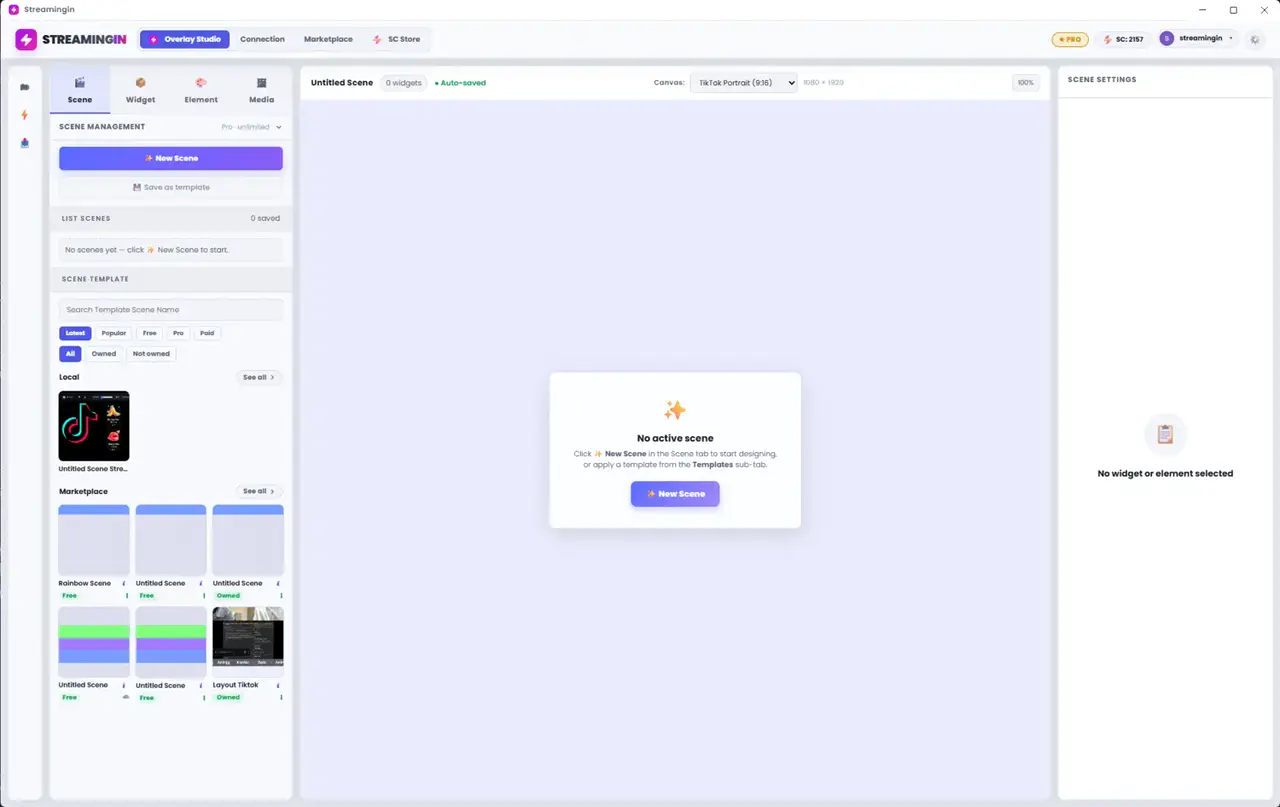
Open Streamingin
Download and launch the Streamingin desktop app. One install, no complex setup — your overlay workspace is ready from the first screen.
Customize, fast & local
Streamingin is designed for stable desktop performance, dividing your workflow into two intuitive modules.
CUSTOM OVERLAY GENERATOR
Intuitive Canva-like design studio. Create stunning visual overlays without a single line of code. Output directly as Browser Source URL.
Overlay Studio Editor with single URL for multi-widget portrait & landscape.
Element library · Demo
Style fully configurable in the app
 4.2K pts
 2.8K pts
 1.1K pts
 860 pts
Static elements
Dynamic elements
Sample data shown. Colours are the app defaults; every one of them is editable.
Designed for Modern Streamers
One Live, Multi Platforms
Go live to YouTube, TikTok, Twitch, Facebook, Instagram and Kick in the same run — one composite, encoded once per codec, so adding a platform costs upload and nothing else.
Drag-and-Drop Editor
No CSS/HTML skills needed. Just drag elements, set colors, and your overlay is ready to use.
Direct OBS Integration
Get Browser Source URL instantly. Just copy-paste to TikTok Live Studio or your OBS.
Engagement & Profit Booster
Visualize every Live Event Activity (Gift, Chat and more) with cool animations from interactive widgets to get closer to your viewers.
Product Pricing Information
Start with Free Tier or upgrade to Pro Tier for unlimited features.
Free Tier
- 3 Scene / Preset
- 7 Elements Per Scene / Preset
- 1 Broadcast Connection
- 1 Event Connection
- Other Limited Config (Overlay, TTS, Audio)
Pro Tier · 30 Days
- Unlimited Scenes / Presets
- Unlimited Elements Per Scene / Preset
- Cloud SFX & Media
- Exclusive Pro Elements / Widgets / Presets
- Full Config Access (Overlay, TTS, Audio, Auto Setup)
- Multi Broadcast Connection
- Multi Event Connection
- Free Referral Voucher as Pro Price for Commission Fee
Pro is bought inside the app, with your account's email.
Pro Tier · 360 Days
- Unlimited Scenes / Presets
- Unlimited Elements Per Scene / Preset
- Cloud SFX & Media
- Exclusive Pro Elements / Widgets / Presets
- Full Config Access (Overlay, TTS, Audio, Auto Setup)
- Multi Broadcast Connection
- Multi Event Connection
- 2x Free Referral Voucher as Pro Price for Commission Fee
Pro is bought inside the app, with your account's email.
Start Streamingin Now
Download - Install - Create Overlay - Live Stream
Overlay & Broadcast
…
Overlay & Broadcast
…
Streamingin for OBS
Overlay OnlyA plugin that puts the whole studio inside OBS — overlays, chat and triggers, with no desktop app needed. Unzip it into your OBS plugins folder.
Windows x64 · .zip
Streamingin for Android
Live from your phoneGo live straight from your phone: an overlay over your game (Mode A), or its own encoder to TikTok, YouTube and more (Mode B). The APK installs right on the phone. The full version adds your mic beside a game's voice chat and music notifications — installed once from a PC over a USB cable, then it updates right in the app.
Android 8+ · .apk
Download full version (USB)Android 8+ · .apk · USB · How to install the USB version
This app is not yet code-signed. Follow these steps to install:
- 1Download the .exe installer above
- 2If the browser asks to delete the file, choose "Keep" or "Keep anyway"
- 3If Windows shows "Windows protected your PC", click "More info" → "Run anyway"
- 4Follow the installation wizard and complete setup
Creator Store
Find overlay works from the Streamingin creator community.
FAQ
Frequently Asked Questions
Is Streamingin really free?
Yes. The Free tier gives you 3 scenes/presets, 7 elements per scene/preset, 1 broadcast connection and 1 event connection, with other settings limited (overlay, TTS, audio). Pro lifts those limits and adds Cloud SFX & media, exclusive Pro elements/widgets/presets, full config access and multiple broadcast and event connections, for Rp 20.000 per 30 days or Rp 240.000 per 360 days, bought inside the app.
Can I stream to more than one platform at the same time?
Yes. StreamingIn multistreams from one composite to YouTube, TikTok, Twitch, Facebook, Instagram, Kick and any RTMP ingest you own, in a single run. YouTube signs in and resolves its own stream key; the others take an ingest URL and key you paste (TikTok and Instagram issue a fresh one for every broadcast, and the app tells you which kind it is up front). Because one encode cannot carry two codecs, the app encodes twice from the same composite — H.265 for the platforms that accept it, H.264 for the ones that do not — so a single platform’s limit never downgrades the rest. Your stream keys are encrypted on your own machine and are never sent to us.
Is it actually as good as OBS?
On picture quality, yes — measured rather than asserted. In a controlled bench at 1080p60 and a fixed 5000 kbps, where every encoder received identical input frames, StreamingIn scored 87.06 VMAF against 86.77 for OBS and Streamlabs on the same GPU: a tie. On H.264 the output file is byte-for-byte identical to OBS’s, because it is the same QuickSync path. TikTok LIVE Studio sits lower at 83.0, though that figure comes from a separate test at a different resolution and bitrate and is not directly comparable. All of it was one machine — an Intel Arc B580 with a Core i5-14600K — so expect the ranking to hold and the exact numbers to shift on other hardware.
How to connect to TikTok Live?
To connect to TikTok Live: 1) Open the Connection module in Streamingin, 2) Select the TikTok Live tab, 3) Login with your TikTok account via OAuth, 4) Grant necessary permissions, 5) Start live stream from the TikTok app, and Streamingin will automatically connect. Make sure you use a TikTok account that already meets the requirements for live streaming.
Can overlays created be used in OBS?
Yes! After creating an overlay in Streamingin, you can export it as a Browser Source URL. Copy that URL and add it as a Browser Source in OBS Studio or TikTok Live Studio. The overlay will be rendered in real-time and can be resized according to your stream needs.
Are there system limitations for running Streamingin?
Minimum requirements: Windows 10/11 64-bit or macOS 10.15+, RAM 4GB (recommended 8GB), stable internet connection. This app is designed to be lightweight and can run on mid-spec computers. For very complex overlays with many widgets, it is recommended to use a computer with higher specifications.
Is Streamingin safe for my account?
Very safe. Streamingin uses standard OAuth authentication and does not store your password. All configuration data is stored locally on your computer. We do not send sensitive data to our cloud server.